


On this page
Classic address autocomplete returns street addresses only, but real-world users often search for places, not just postal locations. This update brings places and categories into the same input.
Key points:
- Traditional address autocomplete focuses on addresses.
- Users frequently search for businesses and POIs instead of full addresses.
- The Geoapify Address Autocomplete API now returns category information for place-aware results.
- The @geoapify/geocoder-autocomplete library combines address and place suggestions via the Places API.
- This enables a new interaction pattern: one search box for addresses and places.
Address Autocomplete API Now Returns Category Information
The main backend change is that Address Autocomplete API responses now include a category field for results that represent places or POIs, aligned with the Places API taxonomy. This bridges classic address search with place discovery in a single response model.
In autocomplete responses, category data is returned separately under query.categories, while address results stay in results. This gives you a list of suggested categories for the user’s query so you can surface category chips, filters, or a "search places" toggle. Category labels can be localized via the lang parameter.
How to use it:
- Category buttons: render
query.categoriesas chips or buttons near the suggestions list. - Scoped search: on click, run POI search with the chosen category.
- UI control: label and order categories using the localized
labelvalues.
Response example for a user typing "cafe":
{
  "results": [
    {
      "formatted": "Agrovila Café Sem Troco, DF, Brazil",
      "result_type": "postcode",
      "category": "populated_place",
      "lat": -15.9423993,
      "lon": -47.6010779
    },
    {
      "formatted": "Cafelândia, PR, Brazil",
      "result_type": "postcode",
      "category": "administrative",
      "lat": -24.6176963,
      "lon": -53.3218057
    }
  ],
  "query": {
    "text": "cafe",
    "categories": [
      {
        "keys": [
          "catering.cafe"
        ],
        "label": "Cafes"
      },
      {
        "keys": [
          "catering"
        ],
        "label": "Food & Dining Places"
      },
      {
        "keys": [
          "catering.cafe.coffee_shop"
        ],
        "label": "Coffee Shops"
      }
    ]
  }
}
Category-Based Places Search in @geoapify/geocoder-autocomplete
This section explains how the library turns category hints into a practical UX: first by exposing categories in the dropdown, then by fetching real POIs once a category is chosen. The flow stays inside one input while still giving users a path from intent to results.
Showing Categories in the Autocomplete Dropdown
As the next step, we’ve added places search support to the autocomplete dropdown in the @geoapify/geocoder-autocomplete library, using the category information returned by the Address Autocomplete API. This makes categories appear as actionable items alongside address suggestions and keeps the interaction inside one input.
What the user sees:
- Address suggestions show specific locations.
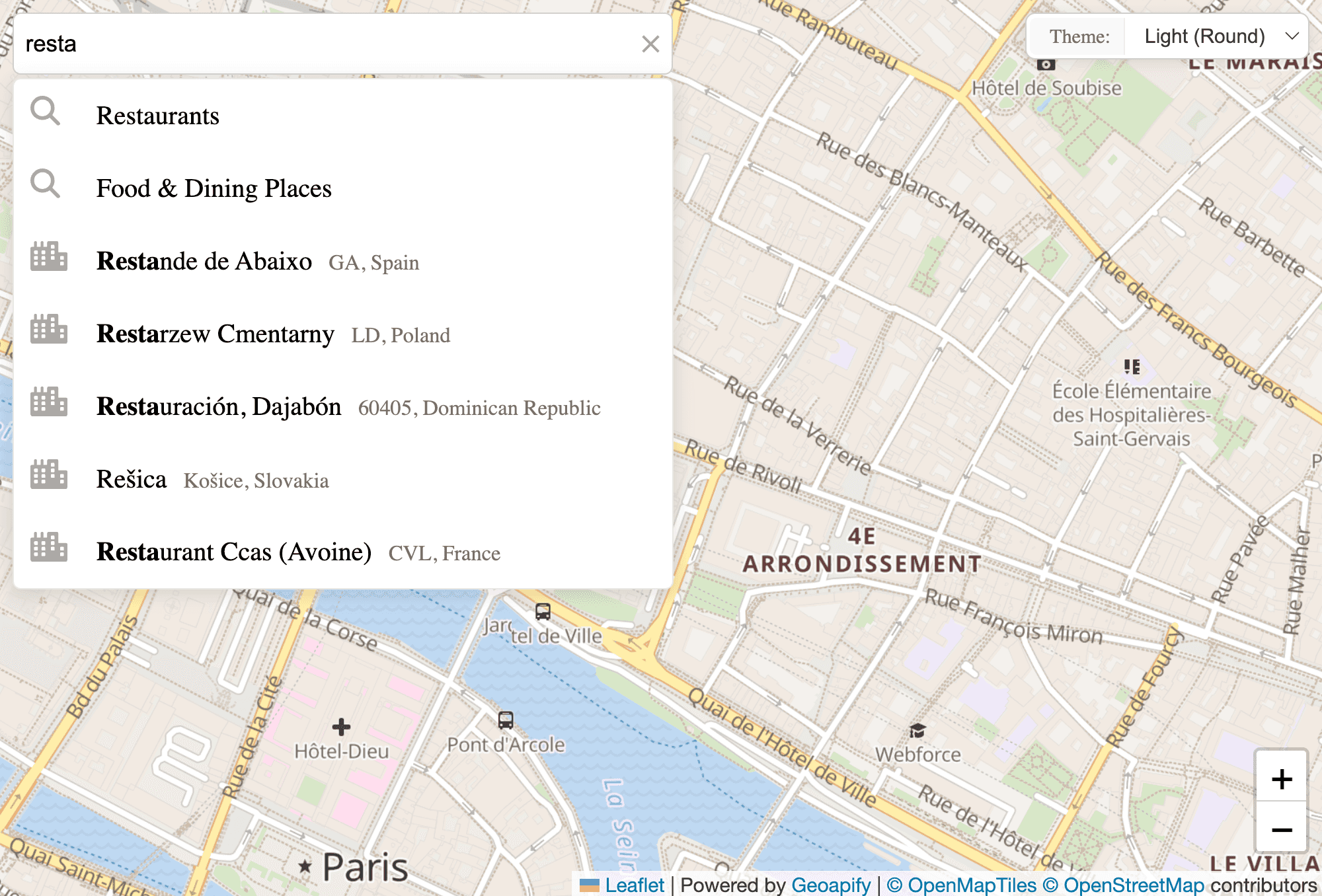
- Category suggestions appear as dropdown list items (for example, “Restaurants”, “Cafes”, “Parking”).
Here is an example of the Address Input:
How it works:
- When a user types a partial query like “Restau”, the dropdown includes a category item such as “Restaurants” and other related.
- Clicking that category button scopes the next search to the selected category.
Searching Places for the Selected Category Using Places API
When a user selects a category, the autocomplete library shifts from address suggestions to place discovery. The selected category keys become the categories parameter in the Places API request.
What happens next:
- A Places API call is sent with the chosen category.
- Results can be scoped by
biasorfilter(for example, near the user or within a map view), either from Address Autocomplete options or set dynamically. - The library emits places events and, if enabled, opens the built-in places list (separate from address suggestions), so you can render POIs on a map or in a custom list.
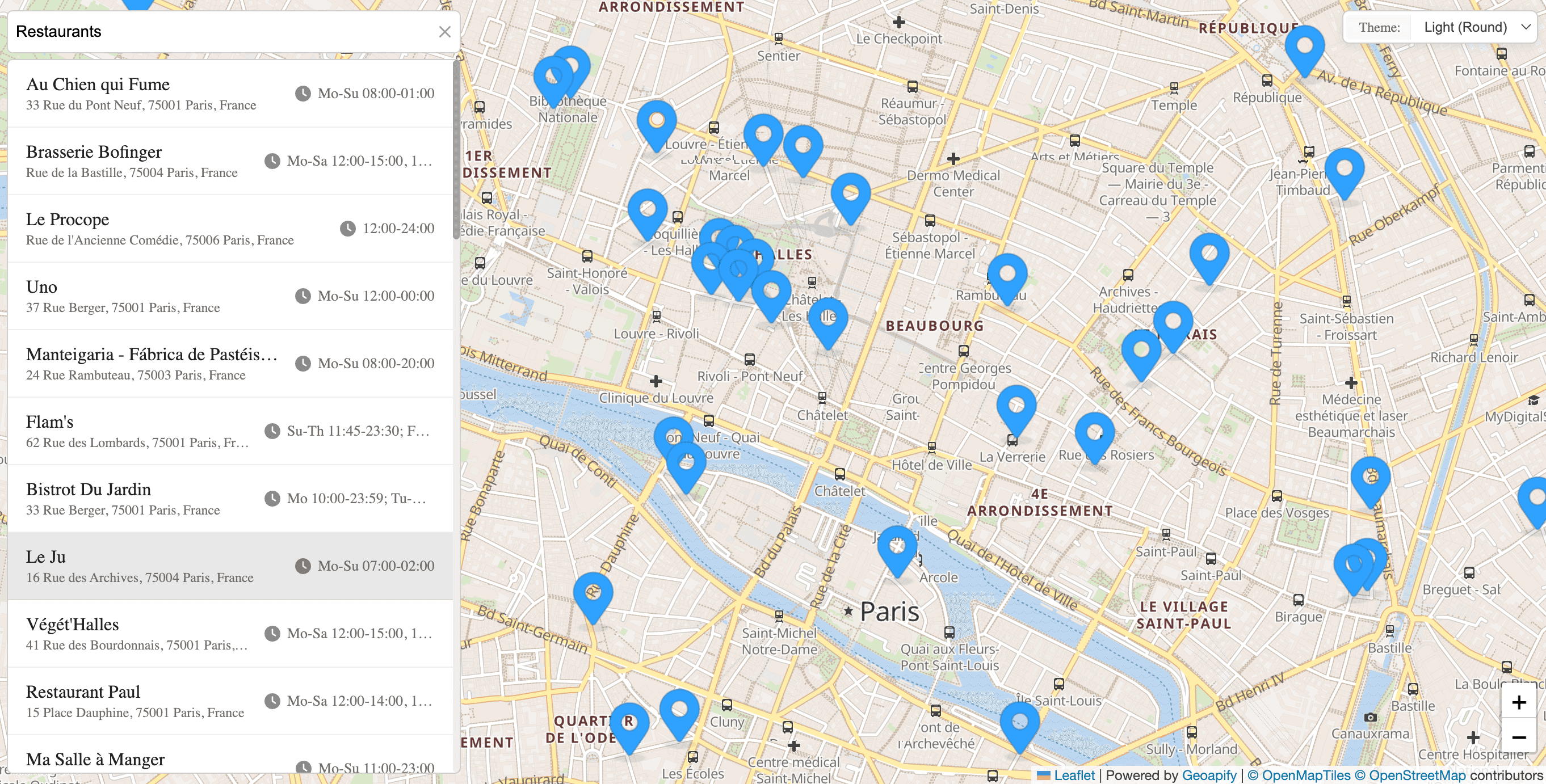
In short, category selection turns a general query into a targeted Places API search and returns concrete POIs you can display or map.
Here is an example of places search results:
Enabling Places Support in geocoder-autocomplete
Enable category search in the library configuration. By default, autocomplete returns only address suggestions. When enabled, the dropdown adds category buttons and the library can fetch POIs for the selected category.
Key options:
| Option | Purpose |
|---|---|
addCategorySearch: true | Enable category-based Places search. |
showPlacesList: true | Display the built-in places list under the input. |
placesLimit | Control how many POIs are loaded per page. |
You will need a valid Geoapify API key with Places API access. Get one at Get started with Maps API.
Options to control result scope and priority:
| Area | Options | What it does |
|---|---|---|
| Address Autocomplete | filter, bias | Use filter for hard boundaries (country-only or a strict circle/rect). Use bias to prefer an area or proximity while still allowing out-of-bounds results when the list is short. |
| Places | placesFilter, placesBias | Apply strict area limits and soft prioritization after a category is selected so POIs stay relevant to the current map view or user location. |
| Limits | limit, placesLimit | Cap address suggestions and control the number of POIs loaded per page. |
Autocomplete events you can use to work with places search:
| Event | Description |
|---|---|
places | Places list updated (GeoJSON.Feature[]). |
places_request_start | Places API request started. |
places_request_end | Places API response received. |
place_select | Place selected from places list. |
Example 1: Showing Places in the Built-In Dropdown List
This is the quickest way to enable places: use the built-in places list so POIs appear directly under the autocomplete input.
When to use it:
- You want a drop-in UI with no custom list rendering.
- You want users to see places immediately after choosing a category.
- You’re building a compact form without a dedicated results panel.
In this demo, the built-in places list is enabled and the Places filter is set to the current map view. That keeps results relevant to what the user is looking at and automatically triggers a new places search whenever the map view changes:
Here are Geocoder Autocomplete options used in the code sample:
// Create autocomplete with category search and built-in places list enabled
const autocompleteInput = new autocomplete.GeocoderAutocomplete(
  document.getElementById("autocomplete"),
  myAPIKey,
  {
    placeholder: "Search for places or categories...",
    addCategorySearch: true,
    showPlacesList: true, // Built-in places list instead of custom UI
    limit: 5
  }
);
Here are the key parts of the code that set bias and filter for places search:
// Add bias based on map view for better results
function updateBiasAndFilters() {
  const center = map.getCenter();

  autocompleteInput.addBiasByProximity({
    lon: center.lng,
    lat: center.lat
  });

  const mapBounds = map.getBounds();
  const rect = {
    lat1: mapBounds.getSouthWest().lat,
    lon1: mapBounds.getSouthWest().lng,
    lat2: mapBounds.getNorthEast().lat,
    lon2: mapBounds.getNorthEast().lng
  };

  autocompleteInput.setPlacesBiasByRect(rect);
  autocompleteInput.setPlacesFilterByRect(extendRectByPercent(rect, 0.2));
}
To resend the Places request on map move, the code sample uses resendPlacesRequestForMore() from the geocoder-autocomplete API.
Example 2: Showing Places in a Custom List with Custom UX
If you need full control over layout, grouping, or visual treatment, render your own list instead of the built-in dropdown. This is useful for card layouts, category grouping, custom icons, or deeper map interactions.
In this demo, the built-in places list is disabled and the app renders a custom list and map markers using the places event. A “Show more” button controls when additional results are loaded, so places are not automatically re-queried on map move:
Here are Geocoder Autocomplete options used in the code sample with custom places list:
// Create autocomplete with category search enabled
const autocompleteInput = new autocomplete.GeocoderAutocomplete(
  document.getElementById("autocomplete"),
  myAPIKey,
  {
    placeholder: "Search for places or categories...",
    addCategorySearch: true,
    showPlacesList: false,
    limit: 8
  }
);
This snippet disables the built-in list and leaves rendering to your own UI:
autocompleteInput.on("places", (places) => {

// Show places in a custom-style list
  showPlacesList(places);
  ...
});
You can also use request events to show loading feedback:
// Handle places request events for loading feedback
autocompleteInput.on("places_request_start", (category) => {
  // Could add loading indicator here if needed
});

autocompleteInput.on("places_request_end", (success, data, error) => {
  if (!success) {
    console.error("Places request failed:", error);
  }
});
When to Use Address-Only vs Address + Places Autocomplete
Use this quick decision guide to pick the right mode for your workflow:
| Mode | Best for | Typical scenarios |
|---|---|---|
| Address-only | Forms and validation | Checkout, billing, shipping, KYC, or any flow that needs a precise postal address. |
| Address + Places | Discovery and search | Store locators, “find nearby” search, service discovery, POI lookups, or queries like “cafe”, “pharmacy”, “parking”. |
Quick rule of thumb: if the goal is data capture, use address-only; if the goal is exploration, enable places.
FAQ
How do I search both addresses and places with Address Autocomplete?
Enable category search in @geoapify/geocoder-autocomplete with addCategorySearch: true. Address results come from the Address Autocomplete API, and selecting a category triggers a Places API request for POIs.
How do I get localized labels for categories?
Use the lang option in the autocomplete configuration or API request. Category labels in query.categories are returned in that language.
What happens when a user selects a category in the dropdown?
The library sends a Places API request using the selected category keys and emits places and place_select events. If showPlacesList is enabled, the built-in places list opens with POIs.
How can I show places in a custom list (nearby results)?
Disable the built-in list with showPlacesList: false and render your own UI from the places event. Use placesBias or placesFilter to keep results near the user or map view.
How do I search places only within the visible map area?
Set placesFilter to the current map bounds (rect) and update it on map move. Then call resendPlacesRequestForMore() to refresh results.
Are there code samples for Places + Address Autocomplete?
Yes. Built-in list demo: CodePen. Custom list demo: CodePen.
Summary
Quick recap:
- Address Autocomplete API now returns category hints.
- Categories connect address search to Places API results.
- @geoapify/geocoder-autocomplete supports built-in and custom UX.
- Start fast with the built-in list, then upgrade to custom UI when needed.
- A better search experience with minimal extra work.
Want to try it now? Grab an API key and follow the quick start: Get started with Maps API.